
Tecno
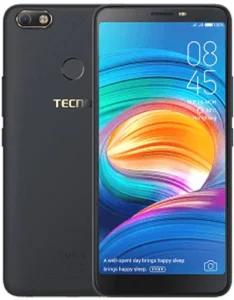
Tecno Camon X Pro CA8S
We have provided the official company-released firmware for your Tecno Camon X Pro CA8S smartphone with SP Flash Tool and MediaTek USB drivers on this page. We have compressed these files in a zip format to share them easily, and you can unzip them using 7-Zip software on your computer. We have tested all these provided files and hosted them on GDrive servers for fast and secure downloads. We have also scanned these files using Avast Premium Antivirus to ensure they are virus-free.
Before you use the files you’ve downloaded from this page to flash your Tecno Camon X Pro CA8S smartphone, please ensure they’ve downloaded successfully, without any errors, and are not corrupt. You will also need a Windows-installed computer and a working USB cable for connecting your Tecno Camon X Pro device with your computer before you start the flashing process. If you don’t know how to flash your Tecno Camon X Pro CA8S device, then just follow the below-provided instructions to flash your Tecno CA8S device easily.
Updating stock firmware on your Tecno Camon X Pro CA8S smartphone can fix all software problems, including the app not responding issue, slow performance problems, auto-restarting issue, dead issue, virus problem, stuck-on Tecno logo issue, auto-restarting issue, Wi-Fi not connecting issue, app not installing problem, Bluetooth not pairing issue, screen flickering issue, rooted device issue, file downloading issue, fast battery draining problem, screen flickering issue, or soft brick issue.
Pre-Requirements
Charge the Battery: Charge your Tecno CA8S to at least 50% to avoid interruptions during the flashing process.
Disable Screen Lock: Turn off your Tecno Camon X Pro’s screen lock to ensure a successful flashing process.
Download Google Accounts Backup: Before you begin the firmware flashing process, save all of your Google account data.
Verify Firmware Version: Make sure the firmware version you have downloaded matches your Tecno model to avoid compatibility problems.
Scatter File: Confirm the firmware package contains a scatter file because it is required for flashing your Tecno Camon X Pro.
Why Flash the Firmware
- Fix problems with the SD card not being recognized by your Tecno CA8S.
- Change your Tecno Camon X Pro from a rooted state back to factory settings.
- Repair system files that have become corrupted or damaged.
- Fix errors caused by a locked bootloader preventing normal use.
- Solve overheating problems on your Tecno Camon X Pro caused by software bugs or issues.
Firmware (Stock ROM) Details
Brand: Tecno
Flash Tool: SP Flash Tool
Drivers Supported: MTK USB Drivers
Firmware Type: Original Firmware
Download Required Files
Firmware File Name: Tecno Camon X Pro CA8S MT6763
Firmware File Size: 1.9 GB
Download SP Flash Tool for Windows
Download SP Flash Tool for Linux
How to Flash Tecno Camon X Pro CA8S
- Download the Tecno CA8S firmware and SP flash tool to your computer.
- Extract the downloaded zip files using WinRAR.
- Install the MTK USB drivers on your computer.
- Open the SP Flash Tool folder and launch the SP Flash Tool.
- Load the stock ROM (firmware) into the SP Flash Tool.
- Turn off your Tecno Camon X Pro CA8S completely.
- In the SP Flash Tool, click “Download Only” and connect your Tecno CA8S to the computer using a USB cable.
- The flashing process will start automatically once your Tecno CA8S is connected.
Advantages of Firmware
- Fix Face Unlock Issues: Flashing firmware can restore functionality when the face unlock feature stops working properly on your Tecno CA8S.
- Fix Google Services Issues: Flashing helps repair Google services if they are not working correctly on your Tecno Camon X Pro.
- Add New Features: Installing new firmware can add updated software features and enhance your Tecno CA8S’s overall capabilities.
- Fix Touch Sensitivity Issues: Flashing can improve screen responsiveness and fix problems with touch sensitivity on your Tecno CA8S.
- Fix App Permissions: Reset app permissions by flashing your Tecno Camon X Pro to fix issues with apps that fail to function correctly.
- Unroot Your Phone: Flashing removes root access from your Tecno CA8S and restores it to its original factory state.
Important Notes
[*] Credits: The Tecno Camon X Pro CA8S firmware is officially released by TECNO Mobile. We have scanned the zip package with Norton AntiVirus Plus before sharing it online.
[*] Backup: Before flashing your Tecno Camon X Pro CA8S, make sure to back up all your data. Flashing the firmware will permanently delete all data from your device.
[*] Note: TecnoFirmware.com is not responsible for any damage that may occur to your Tecno Camon X Pro CA8S. Please proceed if you have sufficient knowledge about it.
[*] Request Firmware: If you’re looking for a specific Tecno firmware that isn’t on our site, you can request it in the comments below or contact us through our “Contact Us” page.
Tecno
Tecno Spark 40 Pro KM6
On this page, we have shared the stock ROM, SP flash tool, and MTK USB drivers required for flashing your Tecno Spark 40 Pro KM6. We compressed all these files in a zip format, you can unzip them using WinRAR software on your computer. The below provided files are tested to ensure they are working properly without any errors.
Before you start flashing your Tecno Spark 40 Pro KM6, make sure the zip files you have downloaded on your computer are successfully downloaded and verify that they are not corrupted. The flashing process also requires a computer because the SP Flash Tool operates on it and a working USB cable to connect your smartphone with your computer. We have shared the How to Flash guide on this page that will help you flash your Tecno Spark 40 Pro KM6.
Why Flash the Firmware
- Improve your Tecno Spark 40 Pro KM6 RAM performance.
- Restore lost IMEI numbers on your Tecno Spark 40 Pro.
- Reinstall system apps that are missing from your Tecno KM6.
- Restore the original stock ROM.
- Resolve Google Services issues on your device.
Prerequisites
- Charge your Tecno Spark 40 Pro KM6 to at least 50% before flashing it.
- Save all your social media and Google account details.
- Enable USB debugging in your Tecno Spark 40 Pro KM6 settings.
- Log out of all social and Google accounts from your smartphone.
Firmware (Flash File) Details
Brand: Tecno
Flash Tool: SP Flash Tool
Drivers Supported: MTK USB Drivers
Firmware Type: Original Firmware

Download Required Files
Firmware File Name: Tecno_Spark_40_Pro_KM6_MT6789_15.1.1.107SP10_OP001PF001AZ_300625_MXML
Firmware File Size: 8.15 GB
How to Flash
- Download Firmware and SP Flash Tool on your computer.
- Extract the downloaded zip files with WinRAR on your computer.
- Download and install the MediaTek USB drivers on your computer.
- Open the SP Flash Tool folder and launch the SP Flash Tool.
- Now, load the stock ROM (firmware) in the SP Flash Tool.
- Turn off your Tecno Spark 40 Pro KM6.
- Click Download Only in the SP Flash Tool, then connect your Tecno Spark 40 Pro to the computer with a USB cable.
- After connecting your smartphone to your computer, the flashing process will start automatically.
Advantages of Flashing Firmware
Fix App Crashes: Installing firmware can update system files to prevent apps from crashing.
Improve Security: Flashing can install the latest security patches on your Tecno Spark 40 Pro KM6 .
Fix Slow App Launching: Updating the stock ROM can fix the slow app launching issue.
Fix Overheating: Flashing can also help solve overheating problems.
Update Software: Flashing the latest firmware can update your Tecno Spark 40 Pro KM6 software.
Important Notes
[*] Credits: The above firmware is officially released by TECNO Mobile. We have scanned the zip package with Norton AntiVirus Plus before sharing it online.
[*] Backup: Before flashing your Tecno Spark 40 Pro KM6 , make sure to back up all your data. Flashing the firmware will permanently delete all data from your device.
[*] Note: TecnoFirmware.com is not responsible for any damage that may occur to your mobile. Please proceed if you have some knowledge about it.
[*] Request Firmware: If you’re looking for a specific Tecno firmware that isn’t on our site, you can request it in the comments below or contact us through our “Contact Us” page.
Tecno
Tecno Spark Go 2 KM4
On this page, we have shared the original firmware, SPD flash tool, and SPD USB drivers required for flashing your Tecno Spark Go 2 KM4. We compressed all these files in a zip format, you can unzip them using 7-Zip software on your computer. The below provided files are tested to ensure they are working properly without any errors.
Before you start flashing your Tecno Spark Go 2 KM4, make sure the zip files you have downloaded on your computer are successfully downloaded and verify that they are not corrupted. The flashing process also requires a computer because the SPD Flash Tool operates on it and a working USB cable to connect your Tecno Spark Go 2 KM4 with your computer. We have shared the How to Flash guide on this page that will help you flash your smartphone easily.
Why Flash the Firmware
- Improve your Tecno Spark Go 2 KM4 RAM performance.
- Restore lost IMEI numbers on your Tecno Spark Go 2.
- Reinstall system apps that are missing from your mobile.
- Restore the original stock ROM.
- Resolve Google Services issues on your Tecno Spark Go 2 KM4.
Prerequisites
- Charge your Tecno Spark Go 2 KM4 to at least 50% before flashing it.
- Save all your social media and Google account details.
- Enable USB debugging in your Tecno Spark Go 2 settings.
- Log out of all social and Google accounts from your smartphone.
Firmware (Flash File) Details
Brand: Tecno
Flash Tool: SPD Flash Tool
Drivers Supported: SPD USB Drivers
Firmware Type: Original Firmware

Download Required Files
Firmware File Name: Tecno_Spark_Go_2_KM4_15.1.0.105SP09_OP001PL001M1_120525
Firmware File Size: 4.80 GB
How to Flash
- Download Firmware and SPD Flash Tool on your computer.
- Extract the downloaded zip files with 7-Zip on your computer.
- Download and install the SPD USB drivers on your computer.
- Open the SPD Flash Tool folder and launch the SPD Flash Tool.
- Now, load the stock ROM (firmware) in the SPD Flash Tool.
- Turn off your Tecno Spark Go 2 KM4.
- Click Download Only in the SPD Flash Tool, then connect your mobile to the computer with a USB cable.
- After connecting your Tecno Spark Go 2 to your computer, the flashing process will start automatically.
Advantages of Updating Stock ROM
Improve Security: Flashing can install the latest security patches on your Tecno Spark Go 2 KM4.
Fix Slow App Launching: Updating the stock ROM can fix the slow app launching issue.
Fix Overheating: Flashing can also help solve overheating problems on your Tecno Spark Go 2 KM4.
Update Software: Flashing the latest firmware can update your Tecno KM4 software.
Important Notes
[*] Credits: The above firmware is officially released by TECNO Mobile. We have scanned the zip package with Norton AntiVirus Plus before sharing it online.
[*] Backup: Before flashing your Tecno Spark Go 2 KM4, make sure to back up all your data. Flashing the firmware will permanently delete all data from your device.
[*] Note: TecnoFirmware.com is not responsible for any damage that may occur to your mobile. Please proceed if you have some knowledge about it.
[*] Request Firmware: If you’re looking for a specific Tecno firmware that isn’t on our site, you can request it in the comments below or contact us through our “Contact Us” page.
Tecno
Tecno Spark 40 Pro Plus KM7
On this page, you will find the original firmware, SP flash tool, and MTK USB drivers required for flashing your Tecno Spark 40 Pro Plus KM7. We compressed all these files in a zip format, you can unzip them using WinRAR software on your computer. The below provided files are tested to ensure they are working properly without any errors.
Before you start flashing your Tecno Spark 40 Pro Plus KM7, make sure the zip files you have downloaded on your computer are successfully downloaded and verify that they are not corrupted. The flashing process also requires a computer because the SP Flash Tool operates on it and a working USB cable to connect your Tecno Spark 40 Pro Plus with your computer. We have shared the How to Flash guide on this page that will help you flash your smartphone easily.
Why Flash the Firmware
- Improve your Tecno Spark 40 Pro Plus KM7 RAM performance.
- Restore lost IMEI numbers on your Tecno Spark 40 Pro Plus KM7.
- Reinstall system apps that are missing from your mobile.
- Resolve Google Services issues on your Tecno KM7.
Prerequisites
- Charge your smartphone to at least 50% before flashing it.
- Save all your social media and Google account details.
- Enable USB debugging in your Tecno Spark 40 Pro Plus KM7 settings.
- Log out of all social and Google accounts from your Tecno Spark 40 Pro Plus.
Firmware (Flash File) Details
Brand: Tecno
Flash Tool: SP Flash Tool
Drivers Supported: MTK USB Drivers
Firmware Type: Original Firmware

Download Required Files
Firmware File Name: Tecno_Spark_40_Pro_Plus_KM7_15.1.1.108SP02_OP001PF001AZ_240625_MXML
Firmware File Size: 8 GB
How to Flash
- Download Firmware and SP Flash Tool on your computer.
- Extract the downloaded zip files with WinRAR on your computer.
- Download and install the MTK USB drivers on your computer.
- Open the SP Flash Tool folder and launch the SP Flash Tool.
- Now, load the stock ROM (firmware) in the SP Flash Tool.
- Turn off your Tecno Spark 40 Pro Plus KM7.
- Click Download Only in the SP Flash Tool, then connect your mobile to the computer with a USB cable.
- After connecting your smartphone to your computer, the flashing process will start automatically.
Advantages of Updating Firmware
Fix App Crashes: Installing firmware can update system files to prevent apps from crashing.
Improve Security: Flashing can install the latest security patches on your Tecno KM7.
Fix Slow App Launching: Updating the stock ROM can fix the slow app launching issue.
Fix Overheating: Flashing can also help solve overheating problems.
Update Software: Flashing the latest firmware can update your Tecno Spark 40 Pro Plus KM7 software.
Important Notes
[*] Credits: The above firmware is officially released by TECNO Mobile. We have scanned the zip package with Norton AntiVirus Plus before sharing it online.
[*] Backup: Before flashing your Tecno Spark 40 Pro Plus KM7, make sure to back up all your data. Flashing the firmware will permanently delete all data from your device.
[*] Note: TecnoFirmware.com is not responsible for any damage that may occur to your mobile. Please proceed if you have some knowledge about it.
[*] Request Firmware: If you’re looking for a specific Tecno firmware that isn’t on our site, you can request it in the comments below or contact us through our “Contact Us” page.

